Showing posts with label PDF. Show all posts

12/18/2011

Add PDF / Word Files on Your Website

Tips Joy - computing, housework, health, gardening, travel, Seattle tips.

Publish PDF or Word Files Tips


Problems: How to add PDF or Word document files to my webpage and the readers can print them directly? 

Publish PDF or Word files tips: First you need upload PDF / Word files to the folder of your hosting server (Web site). Then add interlinks to these files at the specific locations of your web page HTML file.


Adobe Portable Document Format (PDF) is a great way to display documents and to be printed. You can use it for the documents you don't want people to be able to edit. The PDF document is also independent of the application software, hardware and operating system used to create, display, or print it. Here is the Acrobat Reader Web site 
 
It’s easy to include a PDF or Word file on your web page, so your readers can open it or download it directly.

➊ Create your PDF / Word files
Use Adobe Acrobat or other PDF printer to create PDF file (e.g. Test1.pdf using free PDF converter software)
Use Microsoft Office or other software to crate word file (e.g. Test2.doc).

➋ Find the PDF / Word file folder of your website
Find the folder name where you will upload the PDF and Word files to? Main folder or another folder on your Web site? If you have a lot of PDF /Word files, it's better to keep them in a separate directory> The main folder can be used mainly for HTML files. (e.g., you can create a new folder “documents” for both PDF and Word files)

➌ Upload PDF / Word file to the folder of your hosting server (Web site)
Upload your PDF / Word files (Test1.pdf, Test2.doc) to the folder (e.g., “documents”) of your hosting server. You can use the easy file upload program that your Web hosting service provides (e.g., CPanel File Manager) or use a FTP program to upload your pdf file to your Web site.

➍ Make a link to the PDF / Word file on your Web page
Use HTML editor (free software NotePad++) to link the PDF / Word file to your Web page. Add the hyperlink to the place where you want the link to show up in the body of your webpage HTML file.

If you had uploaded the PDF /Word file on the same (your hosting) server, the code would look like:
<a href ="documents/Test1.pdf">Click here for the Test1.pdf PDF file</a>
<a href ="documents/Test2.doc">Click here for the Test2.doc Word file</a>

If you had uploaded the PDF /Word file on a different hosting server, the code would look like this instead:
<a href ="http://www.yourwebsite.com/documents/Test1.pdf">Click here for the Test1.pdf PDF file</a>
<a href ="http://www.yourwebsite.com/documents/Test2.doc">Click here for the Test2.doc Word file</a>


➎ Testing the link on your Web page
When click the link on your Web page, the PDF / Word file will be opened or can be saved as a file on the reader’s computer.

Related Topics:

10/29/2011

How to Fill Out Non-Interactive PDF Form on Your Computer?

Tips Joy - computing, housework, health, gardening. It becomes very common for you to fill out a lot of PDF forms on a daily basis. Some forms are very easy to fill them out on your computer. Some forms are not; then, you need to print and fill them out manually. This article will help you to solve this problem.

There are two kinds of “form” files. The Interactive PDF form is a PDF file with fillable fields, which you can fill the form directly by clicking the form fields without using any other software. The other kind of form is called the non-interactive PDF form, which is a plain PDF file with lines and texts. When you place the pointer over a non-interactive form field, the basic pointer icon doesn’t change. You can’t fill the form out directly.

Here are simple steps to fill out non-interactive PDF form on your computer.

➊ Download and save the non-interactive PDF form on your computer.


➋   Download the free PDF reader software “Foxit Reader”. The information is available at Free PDF Editor Software Download


➌ Install Foxit Reader on your computer and Foxit Reader icon will appears on the screen.


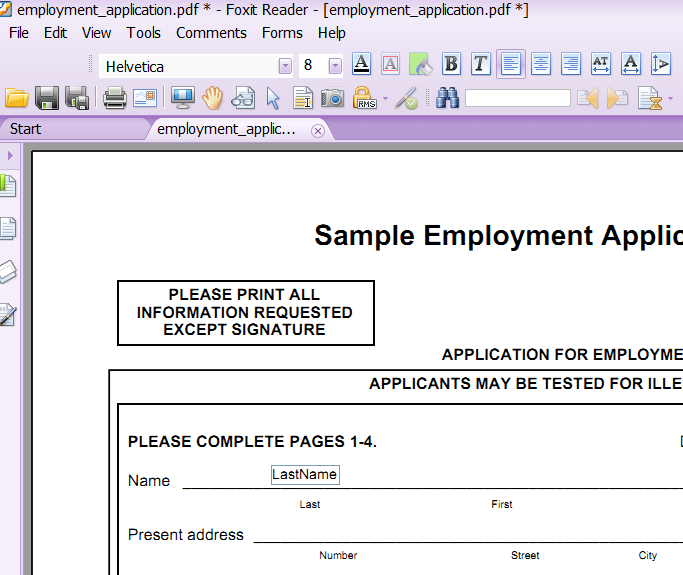
➍  Click Foxit Reader icon. Then, click “File” and “Open”. When you find your non-interactive PDF form, click it. The name will appears at the bottom “File name” box. At the right bottom, click “Open” box to open this file.


➎ Choose Comments > Typewriter Tools > Typewriter. At this time, you can put the pointer on the area to type information over the blank form fields. Then, you can save, email, or print a copy of the completed form.


10/25/2011

Green Printer - Save Papers and Ink Cartridges

Tips Joy - computing, housework, health, gardening.

Cool Printer Tips - Free Software to Print the File as a PDF Electronic File

 
Portable Document Format (PDF) is the de facto standard for the secure and reliable distribution and exchange of electronic documents and forms around the world.

There are too many electronic stuff needs to be printed out for various reasons. We print documents, emails, word writings, spreadsheets, images, search results, Screen Capture, and others on a daily basis.


It wastes a lot of paper and storage space. Sometimes, it’s not easy to find the paper or the paper is damaged when we need it.

Fortunately, instead of printing everything using papers, we can choose PDF converter (e.g. CutePDF Writer) as the selected printer and print it to a PDF file.

 
PDF electronic documents have countless advantages over traditional archiving formats (e.g. paper or microfilm). We can access it easily when we need it.

Some advantages of a PDF archive over a TIFF ( Tagged Image File Format - is a file format for storing images) or a paper-based archive are:
  1. Full-Text Search
  2. PDF stores objects (e.g. text, graphics), allowing for an efficient full-text search in an entire archive. TIFF is a raster format and must first be scanned with an OCR (optical character recognition) engine.

  3. File Size
  4. PDF files require only a fraction of the memory space of original or TIFF files, without loss of quality. The smaller file size is especially advantageous by electronic file transfers (FTP, e-mail attachment etc.)

  5. Optimization
  6. PDF/A format can be optimized. The optimization can be focused on images (e.g. scanned checks) or extracting structured data (e.g. voucher information). TIFF treats all file information the same.

  7. Metadata
  8. Metadata like title, author, creation date, modification date, subject, keywords, etc. can be stored in a PDF/A file. PDF/A files can be automatically classified based on the metadata, without requiring human intervention.
CutePDF Writer is the free version of commercial PDF converter software. CutePDF Writer installs itself as a "printer subsystem". This enables virtually any Windows applications to convert to professional quality PDF documents - with just a push of a button!

It is free for commercial and non-commercial use. No watermarks or Popup Web Ads.
The download website can be access here CutePDF Writer Download