Showing posts with label download. Show all posts

11/08/2011

How to Convert Digital Camera Videos to Animated GIF

Tips Joy - computing, housework, health, gardening. Free Converting Digital Camera Video (AVI - Audio Video Interleave) to Animated GIF (Graphics Interchange Format)

The digital camera can be used to take video as AVI format. For various reasons - fun or attractive, the videos can be converted to the animation format.

The animated photo (Mud Bubble Pond) showing here is a video taken using a digital camera (Cannon PowerShot) at the New Zealand. The file size is reduced from the original AVI video format size (65.0 MB) to GIF (3.88 MB).


The free application MovieToAniGIFWin7.zip (32 kB) can be downloaded from Evan's Web Site. Supported formats include WMV, AVI, MPEG, and MP4 for Windows 7, Windows Vista or Windows XP.

Another way to convert AVI video format files to GIF animation file is to upload your video image (AVI format) to a free on-line converting website and convert it to GIF format.

For example, the fireworks GIF animation was created using the online-convert.com. It is a free on-line converting images to GIF website.


Related Topics:
How to Create an Animated Photo and Post it on the Social Website?

11/02/2011

Easy YouTube Videos Download Tips

Tips Joy - computing, housework, health, gardening.
Video DownloadHelper

Problem: When watching videos on YouTube, you like them and want to know how to download the videos and watch them on your computer.

Cool Tip: You can add an add-on “Video DownloadHelper” to Mozilla Firefox Web browser. With this addon you can download the videos and watch them on your computer without buffer.

DownloadHelper is a tool for web content extraction. Its purpose is to capture video and image files from many sites. It’s the easy way to download and convert Web videos from hundreds of YouTube-like sites. This works also for audio and picture galleries

Just surf the Web as you are used to, when DownloadHelper detects it can do something for you, the icon gets animated and a menu allows you to download files by simply clicking an item.

For instance, if you go to a YouTube page, you'll be able to download the video directly on your file system. It also works with MySpace, Google videos, DailyMotion, Porkolt, iFilm, DreamHost and others.

You can setup the extension to automatically convert the downloaded movies to your preferred video format.

When you are on a page containing links to images or movies, you can download some or all of them at once. Moving the mouse over the items in the menu will highlights the links directly in the page to make sure they are the ones you want to pick up.

DownloadHelper also allows you to download files one by one, so that you keep bandwidth to surf for other stuff to download.

Go to Firefox Web browser (download it free if you do not have), click "Tools", "Add-ons", "see all" at the right of "Up & Coming". Then click "Most Popular", find "Video DownloadHelper", and click " + Add to Firefox".

When you first install the extension, your browser is redirected to a welcome page with links to Downloadhelper User Manual .

10/29/2011

How to Fill Out Non-Interactive PDF Form on Your Computer?

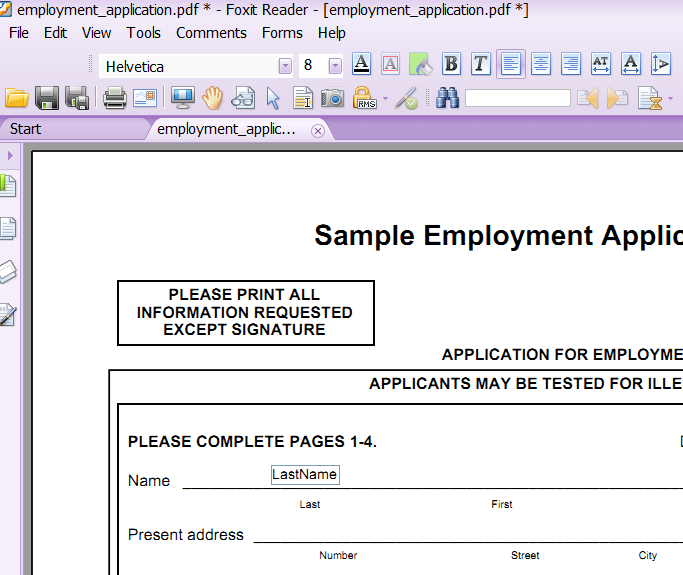
Tips Joy - computing, housework, health, gardening. It becomes very common for you to fill out a lot of PDF forms on a daily basis. Some forms are very easy to fill them out on your computer. Some forms are not; then, you need to print and fill them out manually. This article will help you to solve this problem.

There are two kinds of “form” files. The Interactive PDF form is a PDF file with fillable fields, which you can fill the form directly by clicking the form fields without using any other software. The other kind of form is called the non-interactive PDF form, which is a plain PDF file with lines and texts. When you place the pointer over a non-interactive form field, the basic pointer icon doesn’t change. You can’t fill the form out directly.

Here are simple steps to fill out non-interactive PDF form on your computer.

➊ Download and save the non-interactive PDF form on your computer.


➋   Download the free PDF reader software “Foxit Reader”. The information is available at Free PDF Editor Software Download


➌ Install Foxit Reader on your computer and Foxit Reader icon will appears on the screen.


➍  Click Foxit Reader icon. Then, click “File” and “Open”. When you find your non-interactive PDF form, click it. The name will appears at the bottom “File name” box. At the right bottom, click “Open” box to open this file.


➎ Choose Comments > Typewriter Tools > Typewriter. At this time, you can put the pointer on the area to type information over the blank form fields. Then, you can save, email, or print a copy of the completed form.