Showing posts with label free. Show all posts

11/16/2011

How to Add a Google Calendar to Your Own Website?

Tips Joy - computing, housework, health, gardening.
FREE HTML Codes to Add a Google Calendar 

Problems: : How to add a free calendar to my own website?

Free Google calendar tips: The calendar can be built using several free web services and easily integrated into your website via a simple HTML code cut-and-paste operation.


Here is one good example how to embed a free Google calendar on your website. It can be used to inform the visitors of your site about upcoming events.

The following are useful tips to embed a free Google calendar on your website:

➊ Go to Google Calendar APIs and Tools website
        Click Publishing Tools


➋ Calendar Publishing Tools Overview
        Click Embeddable Calendars


➌ Fill in the information and select calendar settings that you want to embed.
        Fill in the information: Title, Navigation buttons, Date, Print icon, Tabs, Calendar list, Time zone.
        Choose week calendar, month calendar, or agenda calendar.
        Customize your embedded calendar(width, height, week starts on, language, background color, border).


➍ Copy the HTML iframe code displayed in the top box.


➎ Paste this code into your website to embed your calendar.


Related Topics:
How to Add a Google Search Box to Search Your Own Website?
How to Find IP Address and Lookup its Location?
Easy YouTube Videos Download
Run Windows System Restore to solve computer problem

How to Add Google Search Box to Search Your Web Site?

Tips Joy - computing, housework, health, gardening. FREE HTML Codes to Add a Google Search Box to Search Your Web Site
 
Problems: : I added a google search box on my website, but it searches all web sites (not my own web site).

Free Google search box tips: Some free HTML/CSS codes are available on line and you can just cut and paste it onto the preferred location of your own Web pages to produce the search box you need - let you either search your own entire site or search the entire Google database (all web sites).

Here is a very good one from www.askdavetaylor.com 
 
The basic technique involved here is to be able to manipulate one of the variables handed to the Google search engine, a variable called sitesearch.

Set it to a null value and you're searching the entire World Wide Web, but set it to a specific domain and it's constrained exactly as if you had typed in the Google special notation site:domain.

In addition to that, you need an input field and a submit button. Put them all together and here's the minimalist Google search form that lets the user alternate between just your site (well, in this case just my site) or the entire Web.

If you'd like to use this on your own site, simply change the occurrences of yoursite.com as appropriate.

<form method="get" action="http://www.google.com/search">
<div style="border:1px solid black;padding:4px;width:20em;">
<table border="0" cellpadding="0">
<tr><td>
<input type="text" name="q" size="25"
maxlength="255" value="" />
<input type="submit" value="Google Search" /></td></tr>
<tr><td align="center" style="font-size:75%">
<input type="checkbox" name="sitesearch"
value="yoursite.com" checked /> only search Your Site<br />
</td></tr></table>
</div>
</form>


If you want to redirect the result of that form to a new window called "new", you just needs to add the target="new" to the first line.

<form method="get" action="http://www.google.com/search" target="new" >

If you always want to guarantee that a new window is launched rather than possibly reusing the 'new' window, use "_blank" as the target instead.
<form method="get" action="http://www.google.com/search" target="_blank">


Related Topics:
How to Find IP Address and Lookup its Location?
Easy YouTube Videos Download
Run Windows System Restore to solve computer problem

11/08/2011

How to Convert Digital Camera Videos to Animated GIF

Tips Joy - computing, housework, health, gardening. Free Converting Digital Camera Video (AVI - Audio Video Interleave) to Animated GIF (Graphics Interchange Format)

The digital camera can be used to take video as AVI format. For various reasons - fun or attractive, the videos can be converted to the animation format.

The animated photo (Mud Bubble Pond) showing here is a video taken using a digital camera (Cannon PowerShot) at the New Zealand. The file size is reduced from the original AVI video format size (65.0 MB) to GIF (3.88 MB).


The free application MovieToAniGIFWin7.zip (32 kB) can be downloaded from Evan's Web Site. Supported formats include WMV, AVI, MPEG, and MP4 for Windows 7, Windows Vista or Windows XP.

Another way to convert AVI video format files to GIF animation file is to upload your video image (AVI format) to a free on-line converting website and convert it to GIF format.

For example, the fireworks GIF animation was created using the online-convert.com. It is a free on-line converting images to GIF website.


Related Topics:
How to Create an Animated Photo and Post it on the Social Website?

10/29/2011

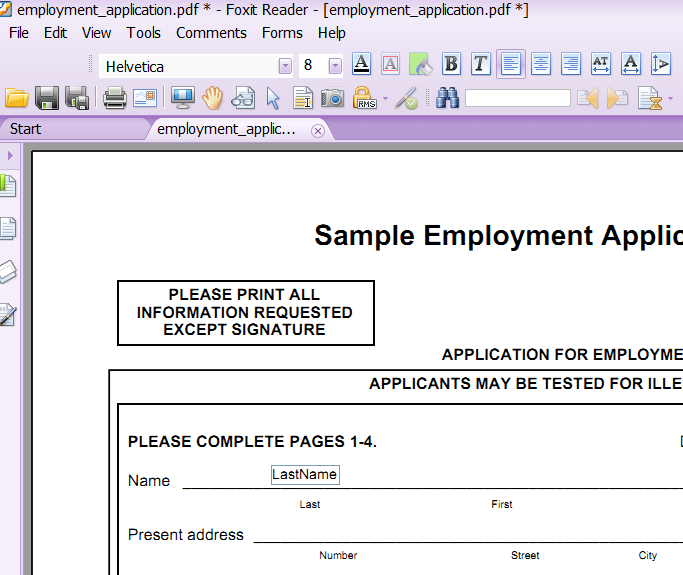
How to Fill Out Non-Interactive PDF Form on Your Computer?

Tips Joy - computing, housework, health, gardening. It becomes very common for you to fill out a lot of PDF forms on a daily basis. Some forms are very easy to fill them out on your computer. Some forms are not; then, you need to print and fill them out manually. This article will help you to solve this problem.

There are two kinds of “form” files. The Interactive PDF form is a PDF file with fillable fields, which you can fill the form directly by clicking the form fields without using any other software. The other kind of form is called the non-interactive PDF form, which is a plain PDF file with lines and texts. When you place the pointer over a non-interactive form field, the basic pointer icon doesn’t change. You can’t fill the form out directly.

Here are simple steps to fill out non-interactive PDF form on your computer.

➊ Download and save the non-interactive PDF form on your computer.


➋   Download the free PDF reader software “Foxit Reader”. The information is available at Free PDF Editor Software Download


➌ Install Foxit Reader on your computer and Foxit Reader icon will appears on the screen.


➍  Click Foxit Reader icon. Then, click “File” and “Open”. When you find your non-interactive PDF form, click it. The name will appears at the bottom “File name” box. At the right bottom, click “Open” box to open this file.


➎ Choose Comments > Typewriter Tools > Typewriter. At this time, you can put the pointer on the area to type information over the blank form fields. Then, you can save, email, or print a copy of the completed form.